

Excel spreadsheets play a central role in managing your business data. Teams use it to organize forecasts, job tracking, costing, approvals, reporting, and more. They use complex calculations built over months or years to track. But once those spreadsheets become core to daily operations, limitations start to show.
The challenge only gets worse if you have multiple people or teams interacting with your data. Sharing files isn’t secure, version control gets messy, field teams can’t update anything in real time, and connecting Excel to ERPs or automated workflows takes time and requires technical help.
You need an app interface.
With a no-code platform like Glide, you can turn your Excel data into secure, scalable, and entirely customized business apps. You keep your existing data updated, and gain role-based access, automation, AI support, web and mobile access, and integrations. You don’t even need to know how to code.
In this article, we’ll explore how to build your own Excel-based web app with Glide.

What methods can you use to create your own web apps from Excel data?
You have four options for building your custom Excel web app. Each option has different trade-offs in terms of speed, flexibility, cost, and the level of technical expertise required.
Custom code: You could build a fully custom-coded app with developers. This gives you maximum control over design and functionality, but it requires engineering time, ongoing maintenance, and a higher budget. This approach works best if you need to build a public app that users can download from the iOS App Store or Google Play Store, or if you have extremely specific requirements.
Vibe coding: There are new AI tools that can turn text prompts into working apps. This method can be useful for quick prototypes or exploring ideas. They’re less suited to operational spreadsheets that require strict data integrity, secure access, and predictable performance over time.
Low-code development: Low-code platforms such as Microsoft Power Apps allow technical users to build web apps using a combination of visual tools and code. Because they require technical knowledge, changes usually go through IT, so iteration moves more slowly. This is a good option when IT teams own app development, and if you need to stay within the Microsoft ecosystem or are creating especially data-heavy apps.
No-code development: A no-code platform like Glide enables you to turn your Excel file into an application without needing to know coding or hire engineers. Connect your existing Excel spreadsheet and assemble an app on top of that data using pre-built components, then extend your interface with integrations, automation, AI, and other powerful features. Like Excel, you can add complex logic, calculations, and workflows to your app using the visual development interface. This approach is ideal for teams that want to create business apps since you can build interfaces on top of your data without the expense or extended timeline required by traditional development.
How to use Glide to create your Excel-based web app
With Glide, you can take your Excel data and turn it into a functioning app in minutes. Glide’s platform is designed to turn spreadsheet data into mobile-adaptive apps quickly.
Your spreadsheet becomes the foundation, and Glide adds secure access, workflows, automation, and user-friendly interfaces. You use visual development instead of having to learn a programming language like HTML, CSS, or JavaScript. Let’s look at how that process comes together.
1. Get your Excel document ready
Your Excel file is the backbone of your app, so it should be structured in a way that Glide can read reliably. Keep it well-organized with clear column names and consistent data types. This makes it easy for Glide to carry your existing logic and structure into a secure, scalable app environment.
Our step-by-step guide on organizing your spreadsheet has detailed information about proper formatting.
2. Connect your Excel file to Glide
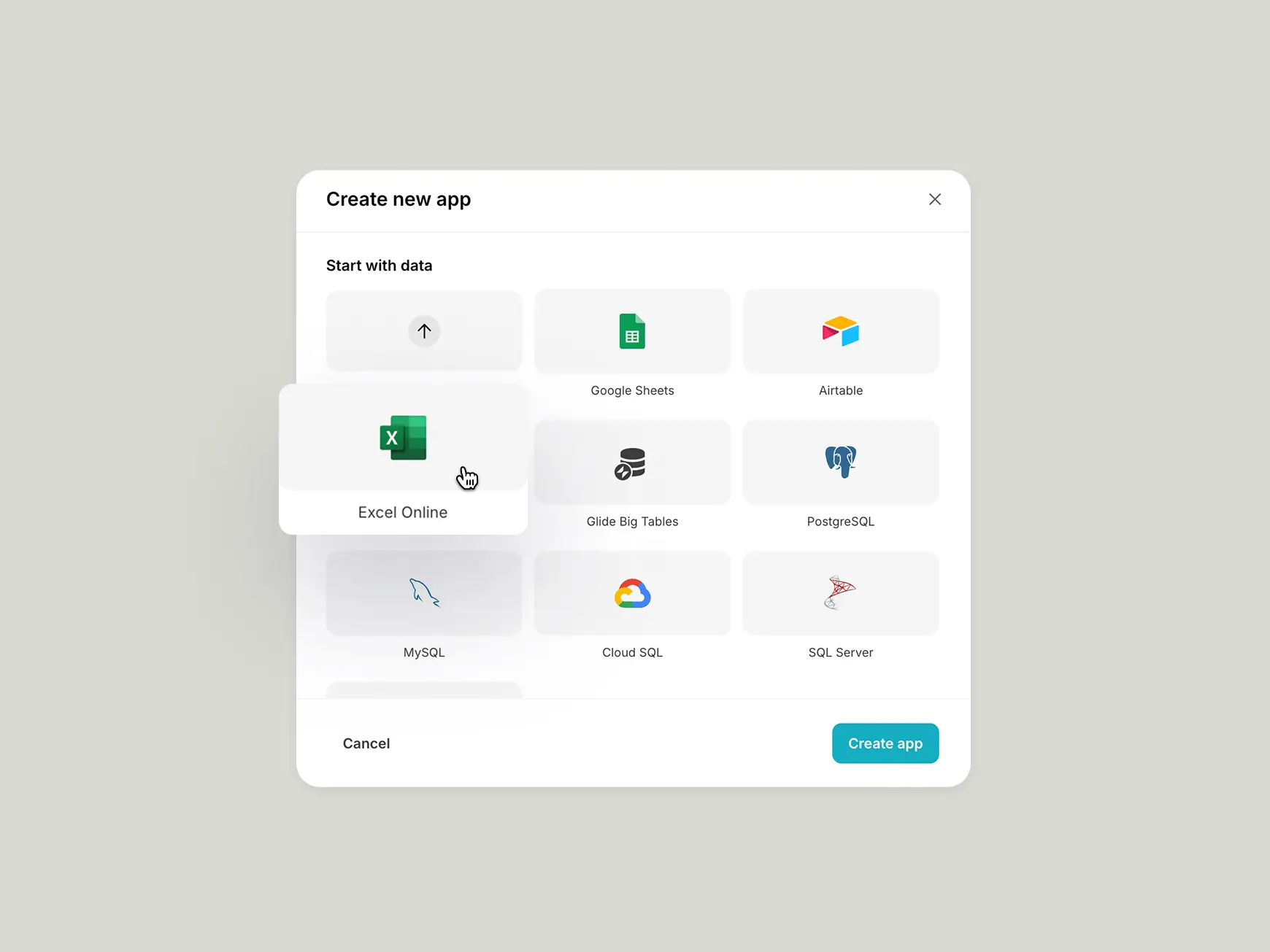
Once your spreadsheet is ready, connect it to Glide to import your data. Glide has a direct integration with Microsoft OneDrive and SharePoint, making the connection possible in just a couple of clicks. You also have the option to upload a CSV file of your Excel Spreadsheet. When you connect your Excel file, Glide automatically generates a basic app based on your unique data structure. You can then tailor this basic app to match to meet your specific needs.
3. Design your web app
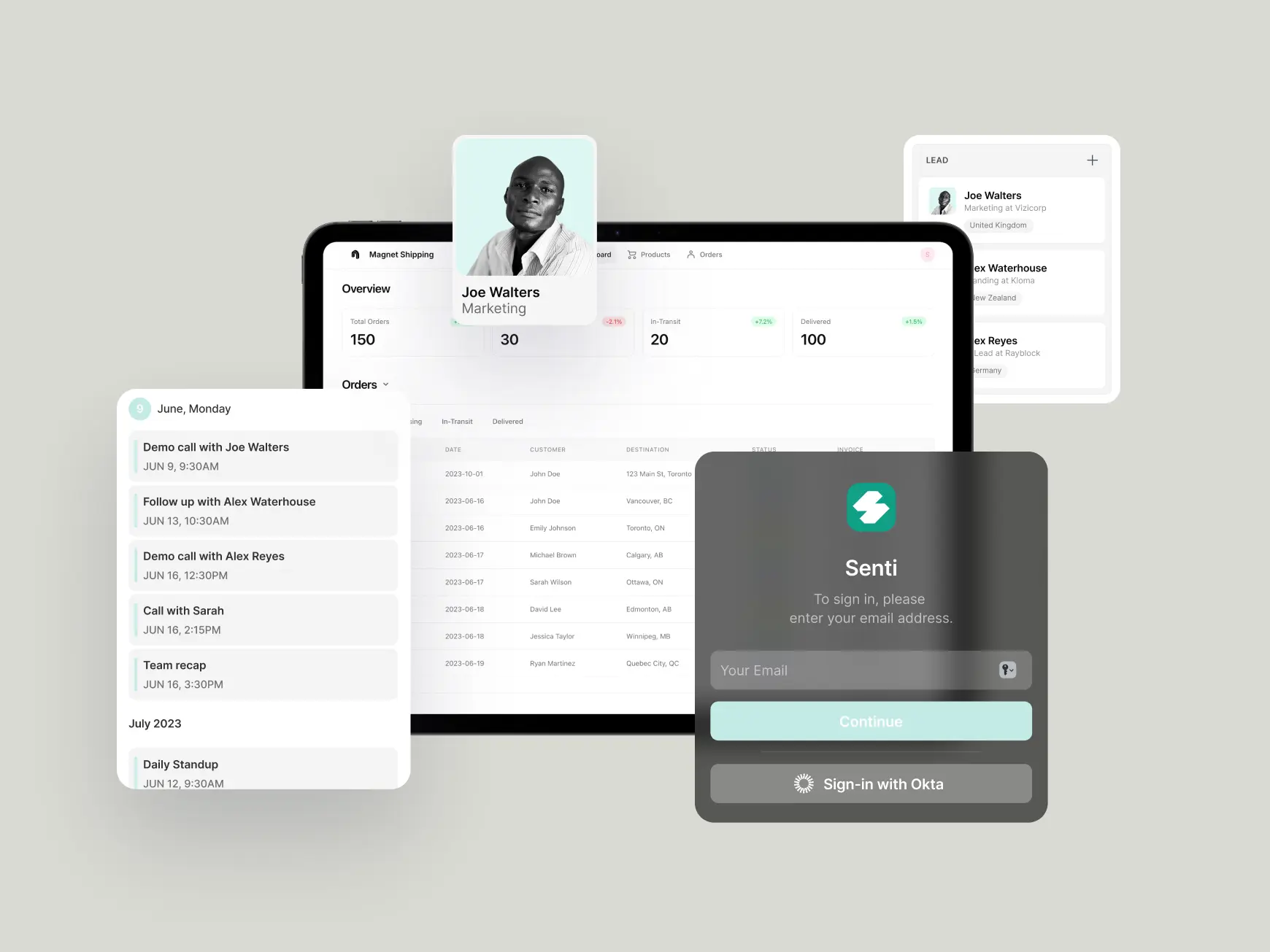
Next, customize your app’s interface and shape how people interact with your data using Glide’s drag-and-drop builder.
There are multiple layout options you can use. What you choose may depend on what makes sense for your data, such as tables for viewing records, checklists for task management, Kanban boards for workflow tracking, calendars for scheduling, and data grids for more complex data work.
You can choose components to display other types of data like images, maps, charts, and text. You can also add actions to some components that allow users to perform an action, such as:
buttons to make a call or send an email
star rating to rate an item
forms to submit data
audio recorder to add a voice note
barcode scanner to automate data entry
You can design different interfaces for different roles, built on top of the same shared data that gets updated in real time. For example, in a warehouse app, a manager might see dashboards and activity logs, while floor staff see only pick lists and updates aligned to their tasks. That way, each team works with the data and actions that match their responsibilities, instead of everyone stepping through the same interface.
In addition, all Glide apps are mobile-adaptive by default. Your web app only needs to be designed once, and it will work across desktop, tablet, and mobile devices. Glide’s built-in adaptive design automatically adjusts layouts for different screens. Field and warehouse staff can scan barcodes, record notes, or submit updates on-site, while managers review the same live data from their dashboards, without any syncing or version control issues.
Lastly, select your app’s logo, sign-in screen, and colors to finish customizing its appearance.
4. Set privacy settings
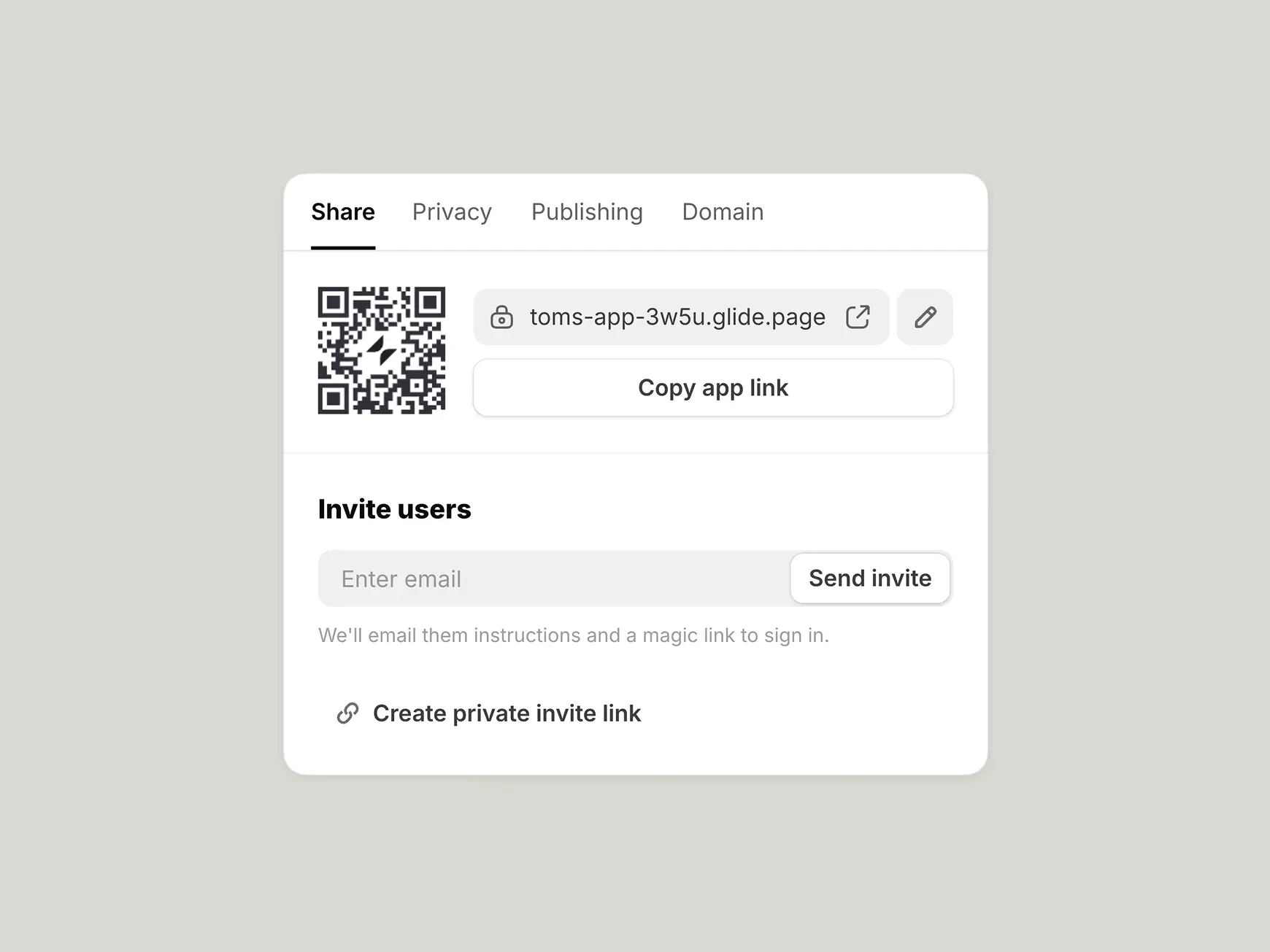
You have full control over who can access your app. Before sharing it with your team, adjust your privacy settings to choose who can sign in to your app and whether a sign-in is required to access your app at all.
You can keep the app private and allow access for specific groups:
Company email domain gives access to employees with your business email. This is useful when the app is only for internal teams.
Users listed in your users table allows only those people you’ve explicitly added. This is ideal for tighter control across departments or roles.
Emails stored in a specific data table allows controlled access for external users. This is helpful for apps where you work with customers, vendors, or field partners.
Members of your Glide workspace lets only those team members who build on Glide access the app. This is helpful if you want to restrict access to those who help maintain or operate your tools.
You can also enable authentication options like single sign-on(SSO) or a PIN to add another layer of protection for your business data.
At this point, you’ve got a working app. You could share it with your team and start using it right away. However, creating custom software offers options that an Excel workbook simply doesn’t. You can build workflows that automate tasks, connect to other tools, and handle processes that would be impossible to manage in a spreadsheet. We’ll look at those options in the following sections.
5. Connect your data and perform calculations
Once your data is in Glide, you can build relationships and logic that create a powerful app. This is done in Excel using formulas or lookups that connect sheets and calculate values. Glide uses Relations and Computed Columns to do the same.
Relations link data across tables or sheets in an Excel workbook. This reflects how information connects in real life and turns separate lists of information into a working system. An employee directory becomes more useful when it connects to project assignments or equipment logs, all without duplicating data or manually updating references.
Alongside Relations, Computed Columns let you apply logic and perform calculations directly within Glide. These function like formulas do in Excel, but they process inside Glide rather than in your spreadsheet. That makes your app faster since it displays updated values immediately as data changes, without waiting for Excel to recalculate.
You can build logic that calculates totals, applies conditional rules, or transforms data based on other inputs. A maintenance app could automatically calculate the days since the last service and include the item in a report when it’s nearing its next service date.
With relevant data connections and calculations taking place in your app, your team works from accurate, up-to-date information that reflects the relationships and rules you’ve built in.
6. Add automations, AI features, and interactivity
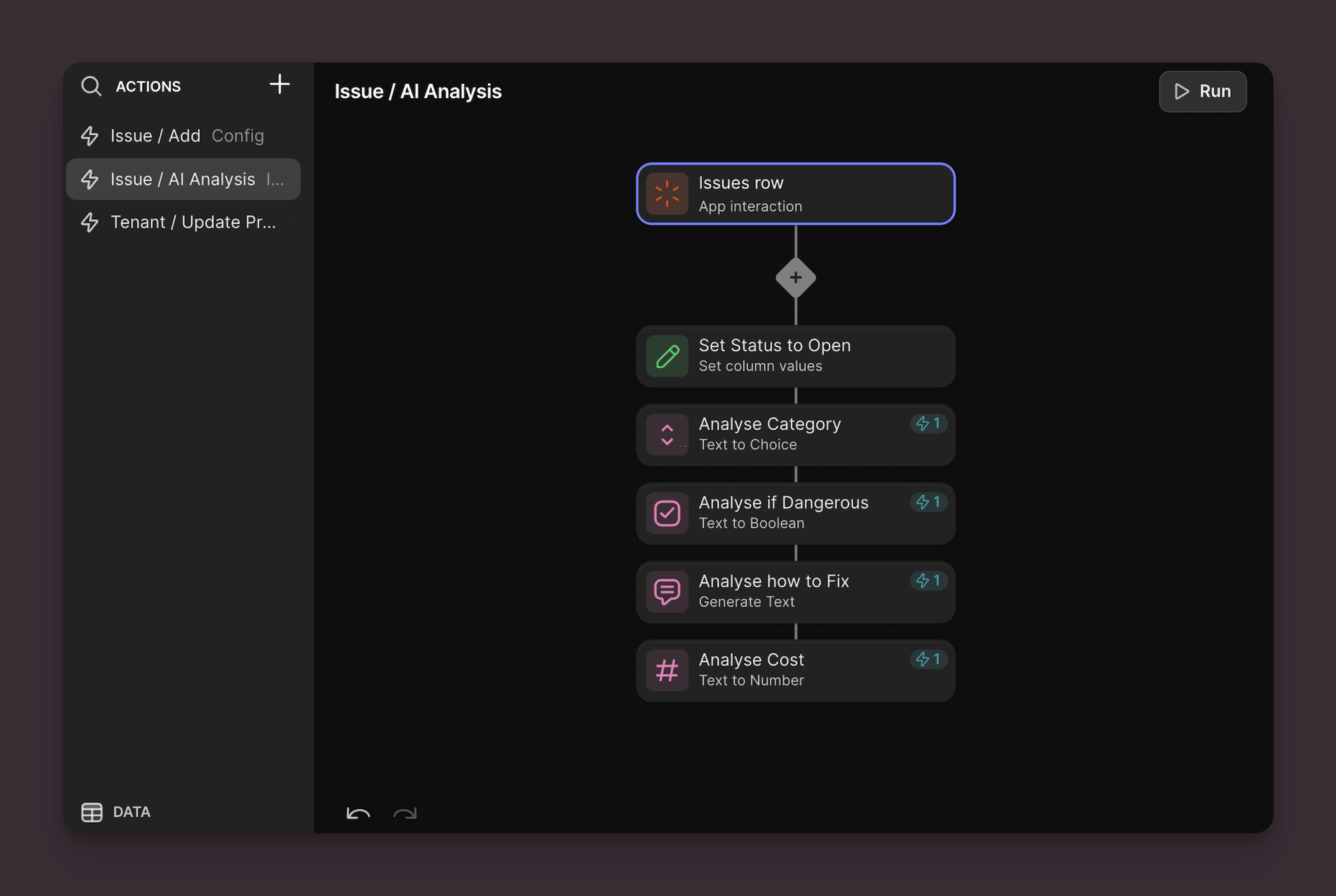
Next, you can add features that turn your data from “data in cells” to “data running processes.”
With Workflows, you can automate tasks that are triggered by certain events. Workflows can be set to run at a specific time, when data flows in from a connected app, or by a user’s actions. For example, you could send out a weekly task list on Mondays at 10 a.m. or notify a Teams channel when a new service request comes in.
Glide AI increases your app’s capabilities by adding AI text generation, audio transcription, image text extraction, and data analysis directly into your app. You can use these features to transcribe service call notes and create follow-up summaries, generate inventory descriptions from product specs, extract shipping details from photos of package labels, or log maintenance issues by voice and route them to the right team.
AI and automation can be tailored to your specific needs as a business, instead of forcing your team to rely on off-the-shelf solutions. For example:
Advanced chemistry company CarboNet built a field app where team members record voice notes on-site. The app transcribes them into bullet points and reformats them into polished, customer-ready messages with adjusted tone.
RDG Planning & Design, which manages city park planning, requires their team to conduct site inspections. Their team uses a Glide app to add photos and notes from the field, then generates draft reports with one button. The app compiles profile data into a structured document, giving project managers a starting point instead of building reports from scratch.
Construction company Build-360 uses Glide AI to generate site visit reports instantly. The app compiles project details and even pulls in weather forecasts, turning on-site photos and notes into ready-to-share client updates.
7. Integrate your tech stack
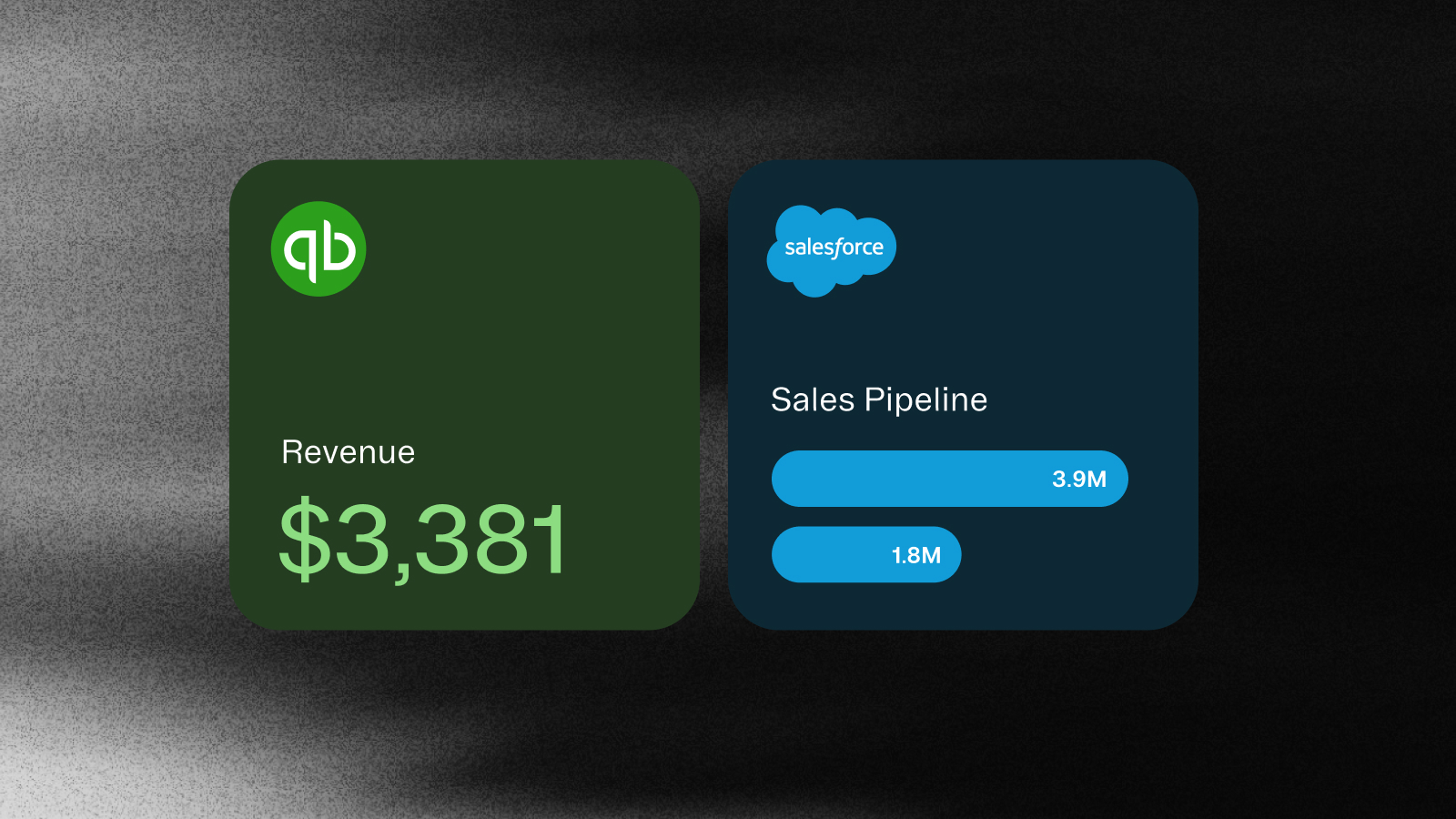
You can connect your Glide app to the software your team already uses. Glide offers native integrations with tools like Salesforce, QuickBooks, HubSpot, Outlook, Teams, Stripe, and Zapier, so data can flow smoothly between systems. Instead of copy-and-pasting from siloed software into a spreadsheet, you can set data to integrate automatically, making your app into a single shared source of truth.
If your business uses specialized software that doesn’t have a native integration, like industry-specific ERP systems, Glide’s APIs make it possible to connect those too.
8. Publish and share your app
When you finish building your web app, it’s time to hit “Publish.” Share your app with your team, customers, or vendors by sharing a QR code they can scan, generating an email, or just posting the web address.
The benefits of managing data with an app over an Excel spreadsheet
Apps allow you to interact with your data in more sophisticated ways than a spreadsheet does. Excel spreadsheets are a valuable tool for storing and organizing data, but they’re not designed for secure team workflows, real-time field updates, or direct integration with other systems. Here are some of the benefits of converting your Excel sheet into software.
There’s really no beating a web app in terms of capabilities and collaboration functionality. Here are a few key benefits:
Greater accessibility: By turning your spreadsheet into an app, you can access your data from any device, anytime, anywhere. Glide apps are automatically adaptive to smartphone, tablet, and computer interfaces. They’re easier to navigate on small screens and adapt to touch and swipe functionality.
Easier collaboration: Multiple users can view and update data without version conflicts. Instead of juggling shared files, teams follow structured screens and forms that guide inputs and reduce errors.
Better access control: With an app, you can control the level of access for each user, making sure everyone only sees (and edits) what they need to. This supports secure data handling across your business, for different roles within a team, or with external partners, without sharing entire spreadsheets.
User-friendly interface: An Excel spreadsheet can be overwhelming for non-tech-savvy users. A well-designed app can present the same data in a more intuitive and user-friendly way with components like charts, graphs, lists, and images.
Automation capabilities: When transformed into an app, your spreadsheet can benefit from additional features like automated notifications, reminders, and updates. This will save you time and ensure your data is always up-to-date.
Integration with other systems: Excel files often hold data that needs to flow into ERPs or CRMs. An app can connect to other systems directly, reducing data silos, manual entry, and copy/paste work.
Better scalability: As your business grows, so can your app. It’s easier and more efficient to manage large amounts of data and more people accessing this data within an app than in a spreadsheet.
Single source of truth: Instead of multiple spreadsheet copies living in drives, inboxes, or desktops, all updates feed into one consistent dataset that stays current.
What kinds of apps can you build from an Excel Spreadsheet?
Spreadsheets store all kinds of important business data, and there are many possibilities for what kind of tool you can build on top of them. Here are a few examples:
Project management apps: Convert your project tracking spreadsheets into an app where tasks, deadlines, and progress can be updated live into a clear, accessible interface.
Inventory management apps: An inventory tracking spreadsheet can be turned into an app, simplifying stock monitoring and enabling real-time updates. Add barcode and QR code scanning abilities so you can scan codes and track inventory directly from your mobile device.
Budgeting and finance apps: If you're managing budgets or financial forecasts on Excel, you can create a finance app that allows you to track expenses, income, and financial forecasts.
Sales tracking apps: Convert your sales tracking spreadsheet into an app to track sales progress, customer interactions, and targets.
CRMs:
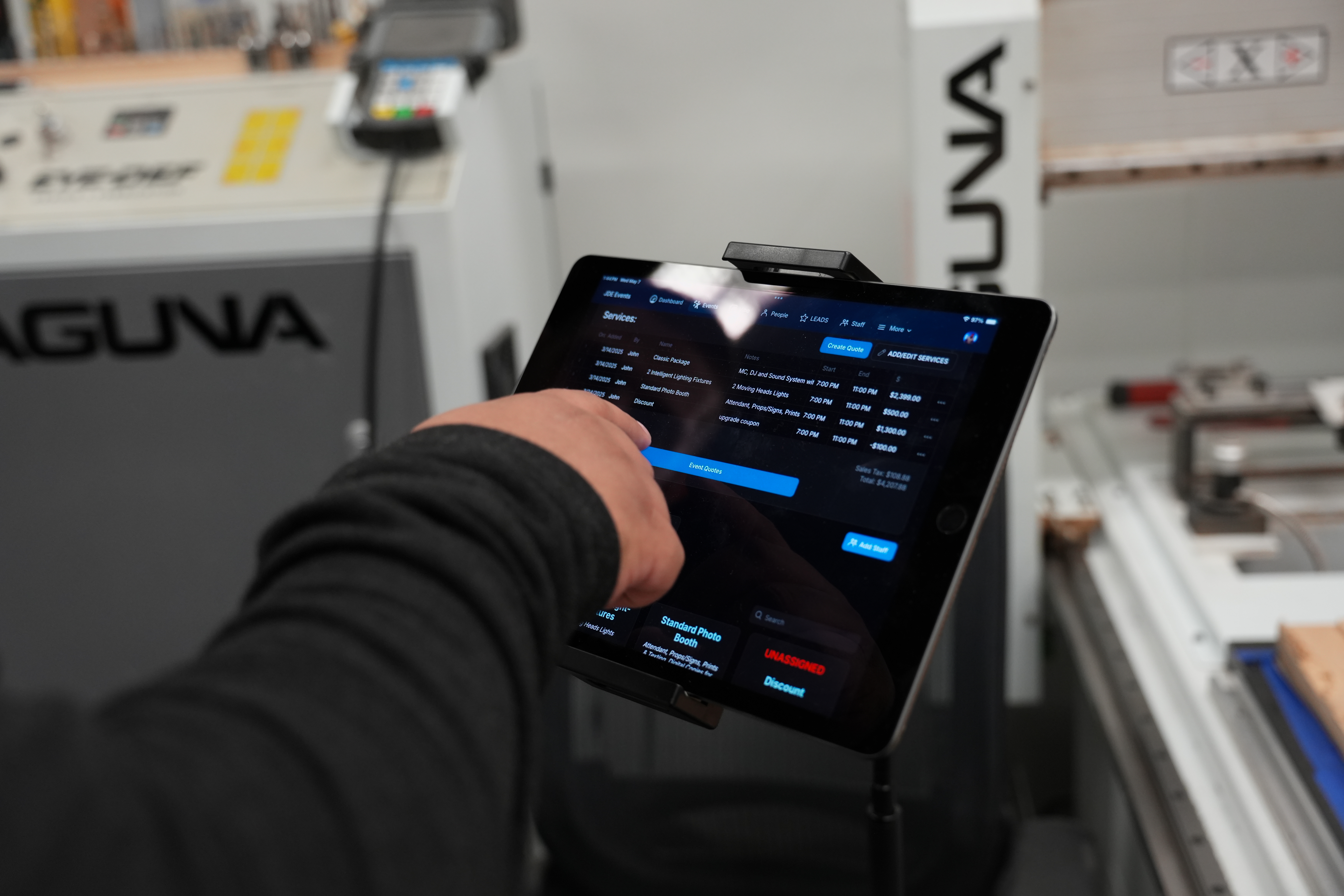
Event planning apps: If you're planning an event, you can transform your event planning spreadsheet into an app where you can manage attendees, venues, and schedules.
Dashboards: Display and share data in more visually appealing and easily understandable ways by creating dashboard apps to show your Excel data. You can create many kinds of customized charts, graphs, and data views. These are great for replacing Leadership reports with live dashboards or giving department leads a central operational view.
Portals: If you are gathering information from employees, clients, customers, or contractors, build them a clean and professional portal. By adding a form to you Glide app you can update your data instantly when it’s submitted instead of copying and pasting info into a spreadsheet from Slack messages or Emails.
Any process or data management task you're currently handling through a spreadsheet can be turned into an efficient and user-friendly app. This not only simplifies your workflow but also elevates the overall user experience for you and your team.
Build an Excel web app ecosystem for your business
You don’t just have one Excel Spreadsheet you use for work, and you don’t need just one Excel-based web app either. Teams that solve one problem with Glide tend to spot other processes they can improve the same way.
Learn how to create a wide range of features and tools using courses in Glide University, turn to our active and supportive Community with questions, or get a solutions partner by hiring a Glide Expert to consult and help you build sophisticated web apps quickly.
You can create tools to streamline all your spreadsheet-based workflows and build a more efficient operation for your whole team. If you start building today, you can have a powerful app shipped and in their hands in no time.
Sign up for a free account with Glide to get started.


